Over the past month, we’ve rolled out several new improvements to our Marketing Automation Platform designed to make it easier to build, review, organize, and measure campaigns at scale. Whether your team is managing emails across dozens of communities, keeping a growing template library clean, or digging deeper into campaign engagement, these updates are built to save time and give teams more confidence before and after launch.
Here’s what’s new.
Finally, we just launched a new capability designed to improve visibility and oversight for one-time campaign launches.
Typically, when a single-send campaign goes live, regional teams and community stakeholders often have no automatic notification that the launch occurred — and no easy way to preview exactly what recipients received. This creates gaps in awareness, quality assurance, and post-launch coordination.
Our new solution is Seed List Testing.
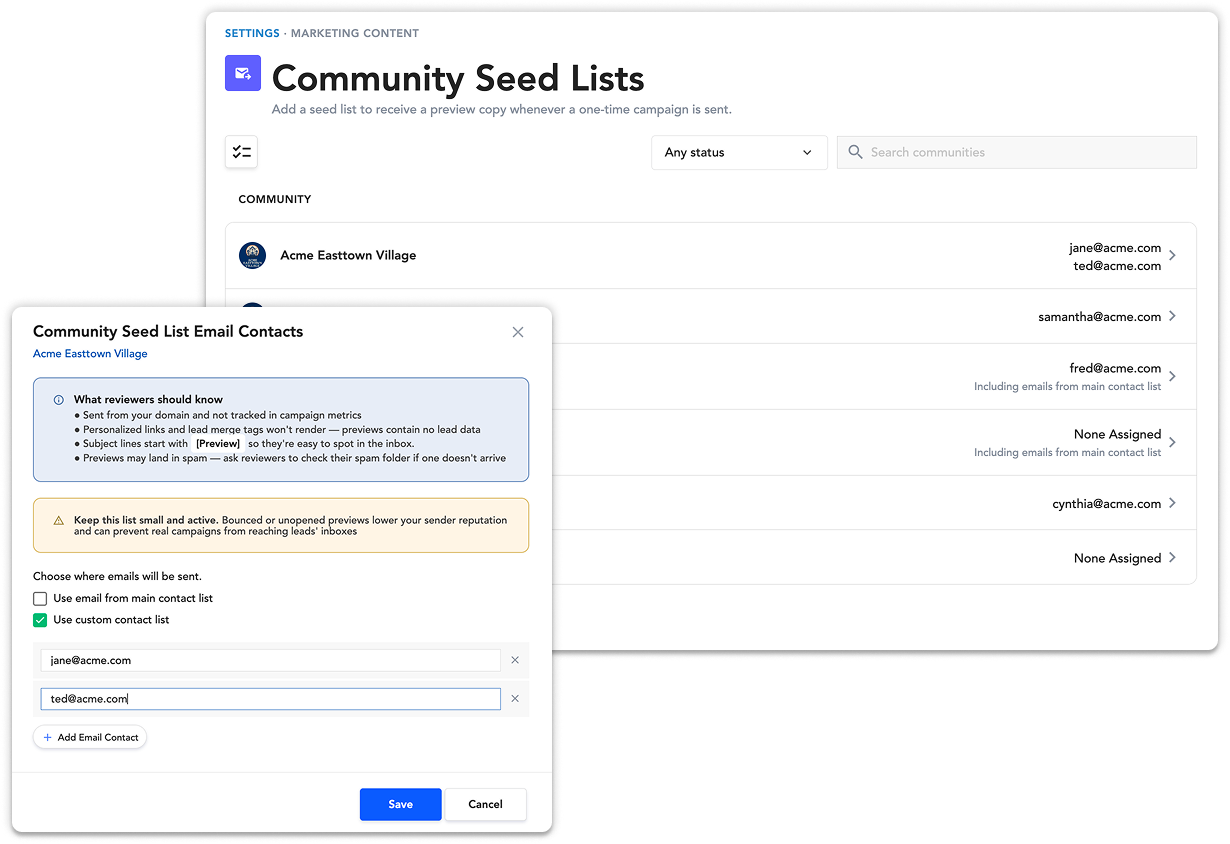
With this enhancement, teams are able to configure a seed list of regional and community stakeholders who should automatically receive a preview copy of a one-time campaign as soon as it launches. These preview emails serve two important purposes:
The goal is simple: make one-time campaign launches more transparent, easier to QA, and easier for regional teams to monitor and support in real time.
To set up this feature, go to Settings → Community Seed Lists. From there, select a community and assign an email address to receive a community-specific preview of your one-time campaign when it’s sent.
To add a custom email address, check the “Use custom contact list” box and enter the email below. You can also send the preview to the sales contact already stored in the system by checking the “Use email from main contact list” box.
Preview emails will arrive with a subject line beginning with [Preview] so they’re easy to identify.
Things to know:
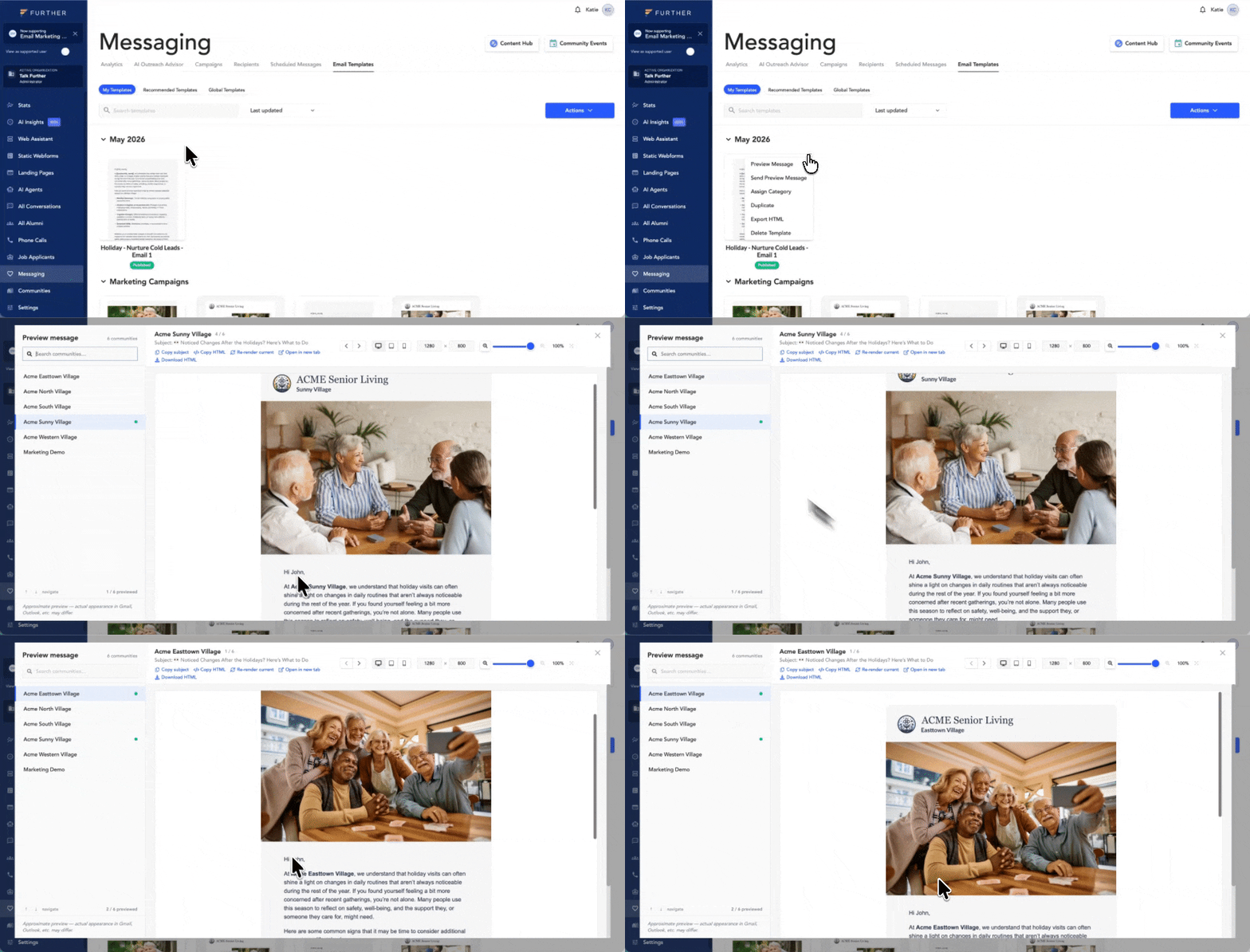
One of the biggest challenges in multi-community email marketing has always been quality assurance. When you need to verify that dynamic content is rendering correctly for every community, the typical process involves sending separate test emails one at a time — a slow and tedious workflow.
Further has introduced a much faster way to validate community-specific emails before launch.
With our new Preview Email feature, you can hover over any campaign or email template, then select the three-dot menu that appears in the upper right corner of the email, and click Preview Message. This will pull up a preview module that will quickly let you preview how each email renders across every community. This includes each community’s logos, photos, text, links, and any other dynamic content used throughout the message.
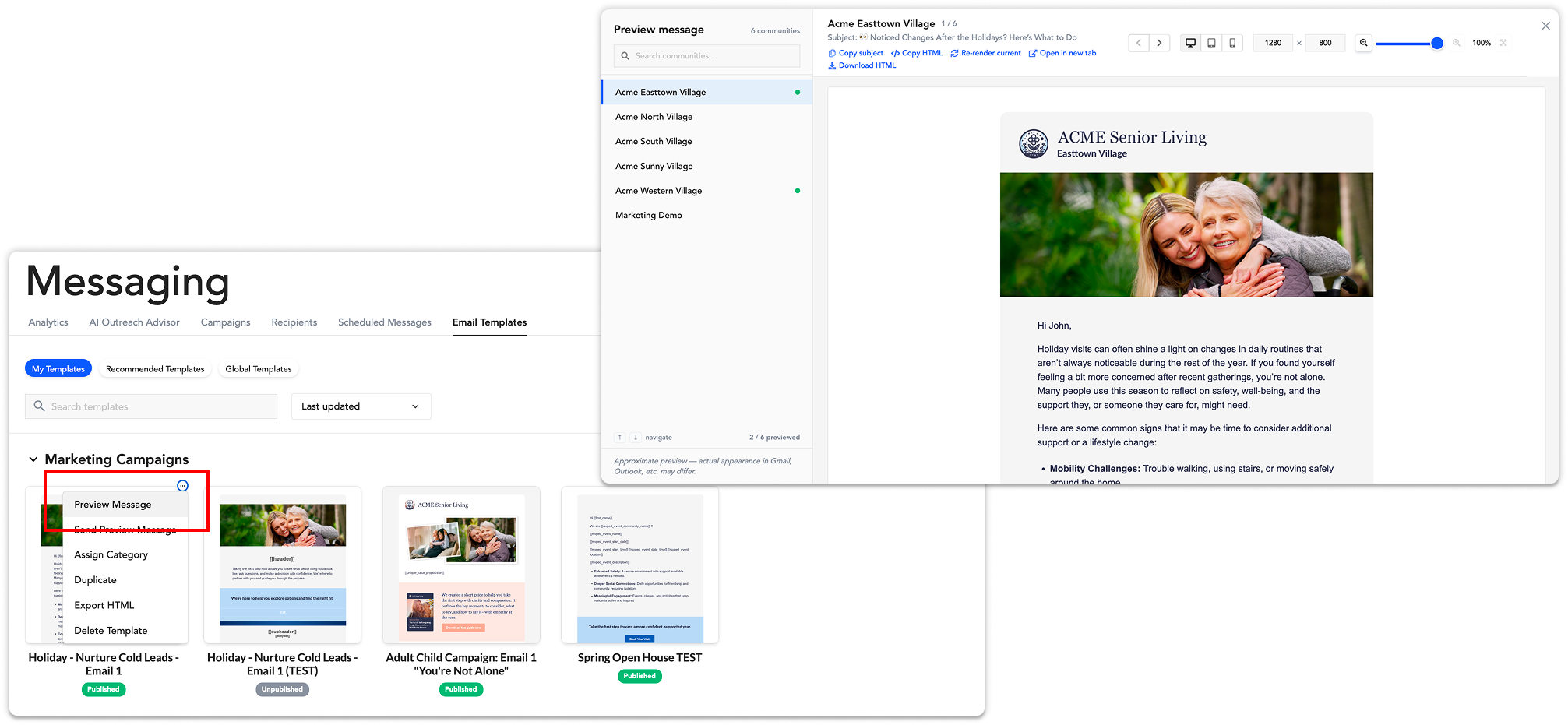
Instead of manually sending and reviewing countless test emails, you can now validate every community variation in a single place before hitting send.
The update also includes several additional QA tools, including:
The result is a faster QA workflow, fewer missed personalization errors, and greater confidence when sending campaigns at scale.
Campaign performance data is most valuable when it helps teams take action.
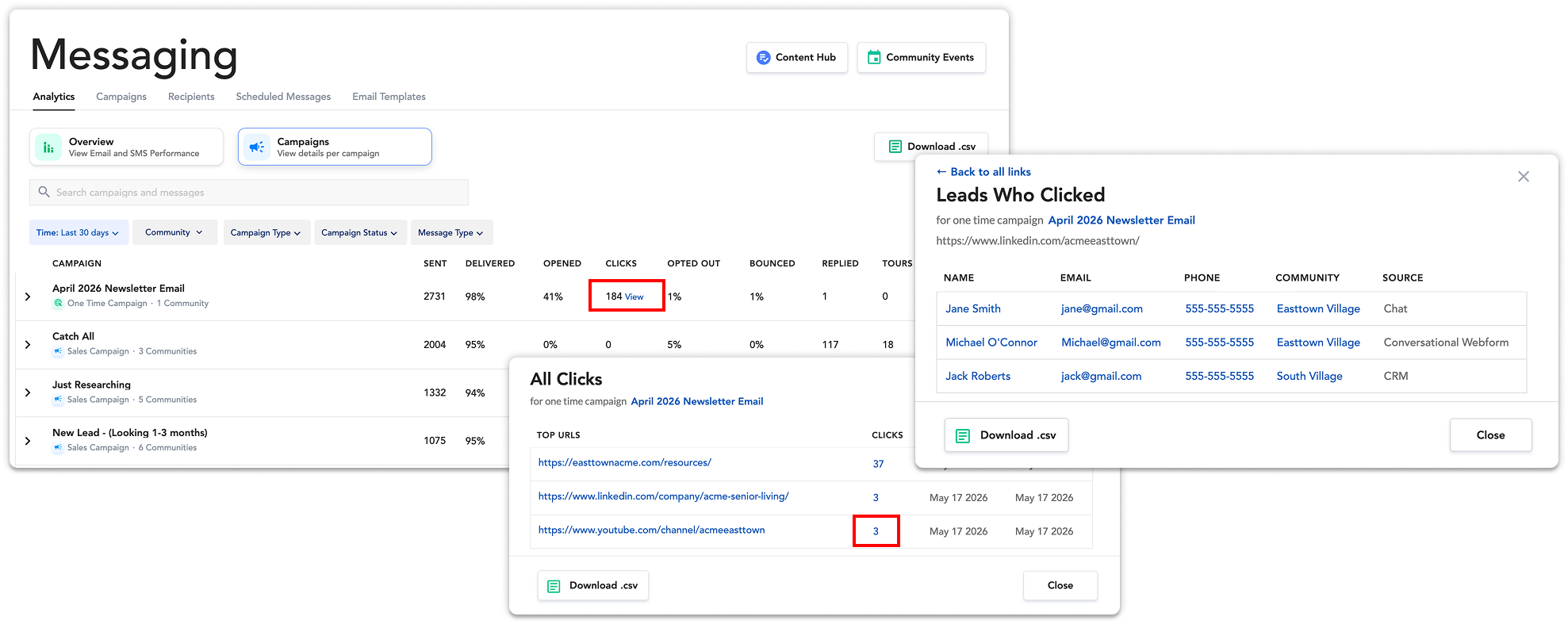
With our new link click analytics, users can now move beyond aggregate click totals and see exactly which leads clicked a specific link within a campaign email.
From Campaign Analytics, click the “View” link next to any campaign’s click total. Then, in the All Clicks modal, click the number in the Clicks column beside any URL to view the leads associated with those clicks. You’ll then instantly see the full list of leads behind that engagement, including:
This makes it much easier to identify engaged prospects, uncover high-interest leads, and connect campaign activity directly to follow-up opportunities.
We’ve added a new way to filter conversations inside the All Conversations page.
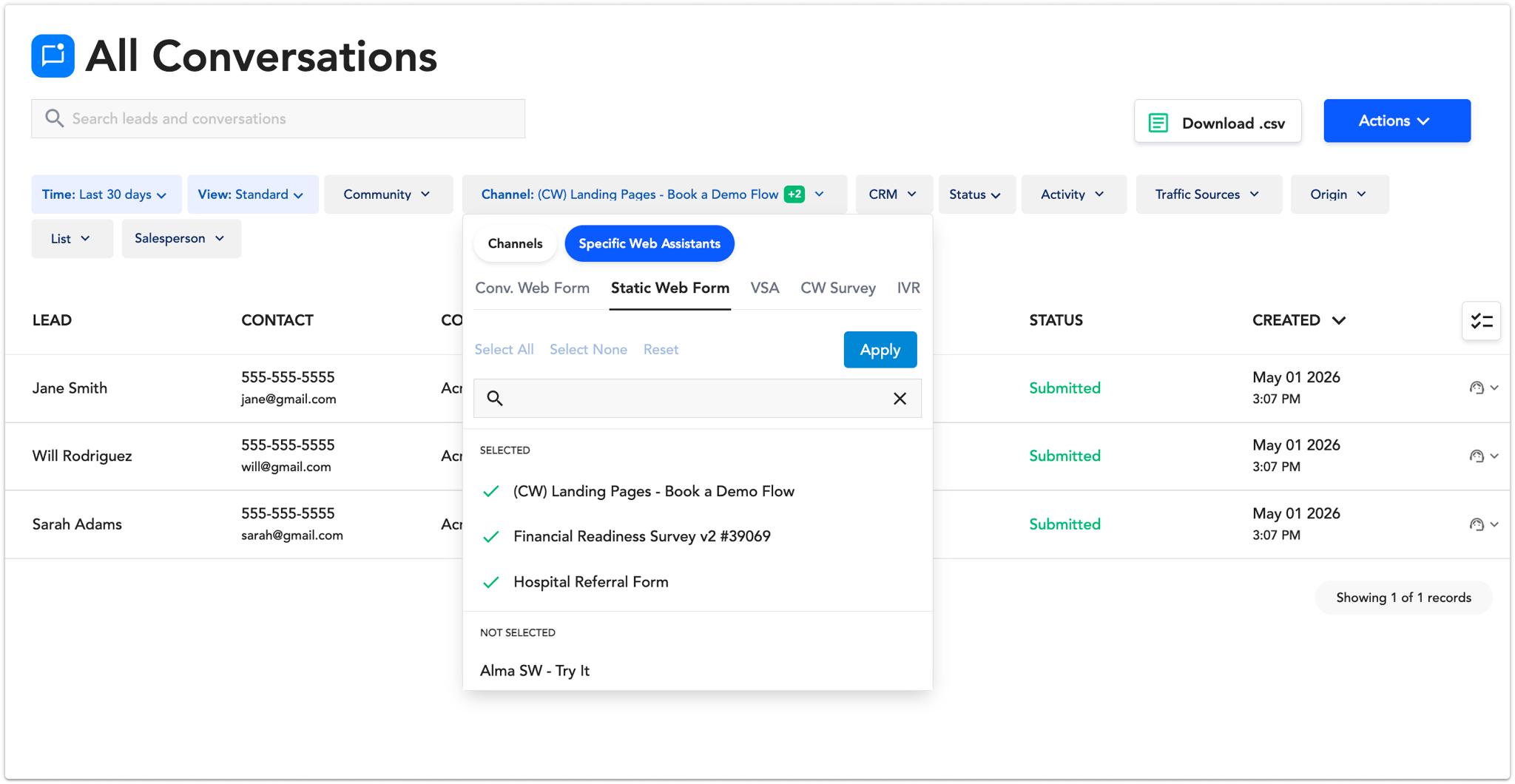
With the new Specific Web Assistants filter, users can quickly view lists of people who filled out:
Users can search for a Web Assistant by name, select one or multiple assistants, and instantly filter conversations tied to those experiences.
This makes it easier for sales and community teams to:
To access this filter, go to the All Conversations page and open the existing Channels filter. Then select Specific Web Assistants.
From there, you can choose from categories like Conversational Webforms, Static Forms, VSA, or IVR, then search for and select one or multiple specific forms or Web Assistants.
Once selected, the conversation list will instantly update to show all leads who interacted with those forms, chats, or surveys.
As email libraries expand, finding the right template becomes increasingly difficult. Teams managing multiple brands, campaign types, and audience segments often outgrow a one-size-fits-all organizational system very quickly.
That’s why we’re introducing Custom Categories for Email Templates.
Users can now create, assign, and manage their own template categories, making it easier to organize the Email Library around the way their team actually works. Instead of relying solely on default groupings, teams can structure templates by:
Creating a category in the Email Templates tab is simple. First, hover over any email template, then click the three-dot menu that appears in the upper right corner of the email. Finally, select Assign Category, then select Add New Category to create one. Categories can also be deleted from the same menu whenever they’re no longer needed.
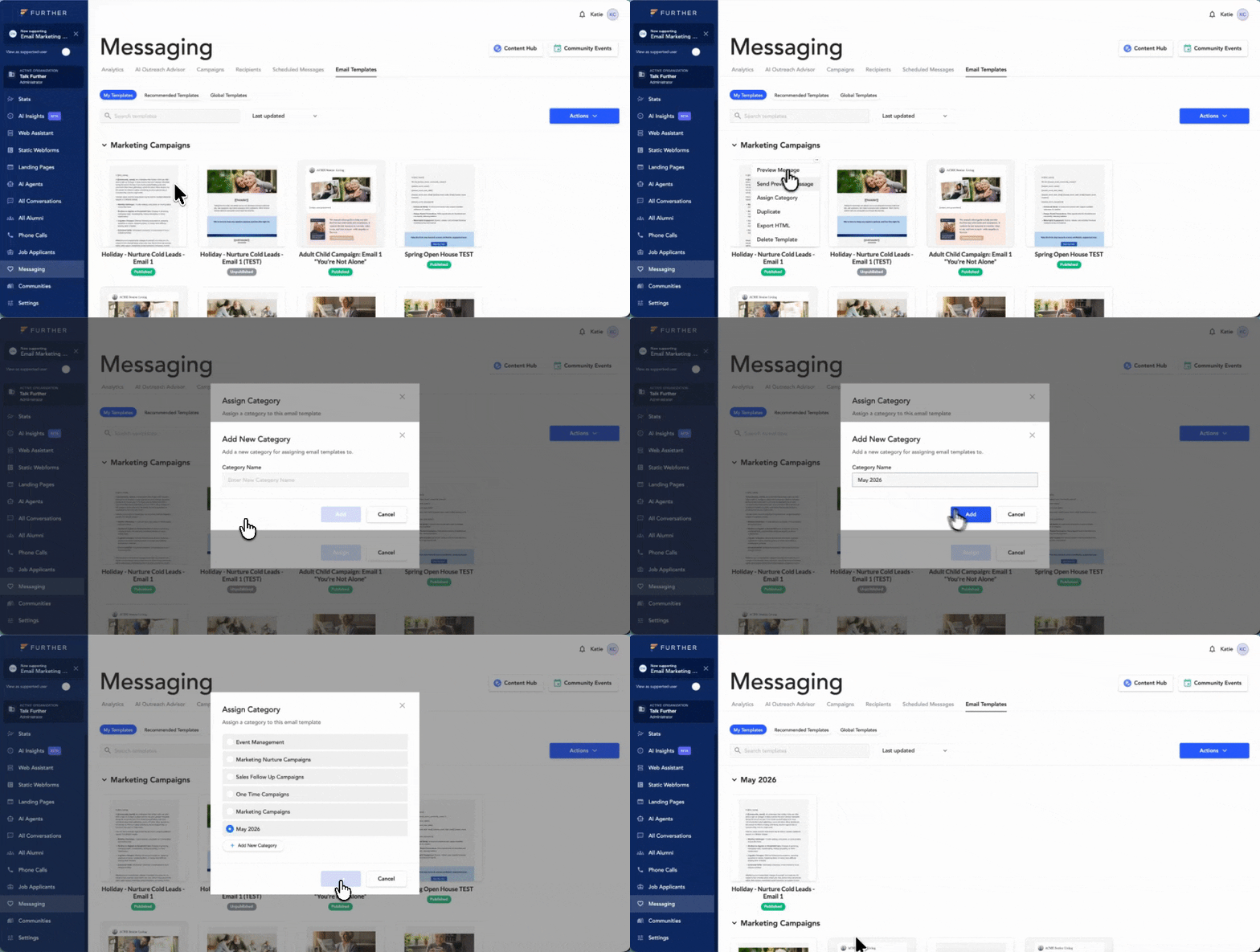
If a category is removed, any templates within it will automatically move to Uncategorized, ensuring nothing is lost in the process.
This release gives teams a cleaner, more scalable way to manage growing template libraries, reduce time spent searching, and speed up campaign execution.
Taken together, these updates address a few of the biggest day-to-day friction points in marketing automation:
They’re practical improvements, but they add up to something bigger: a platform that makes it easier to move quickly without losing control.
As marketing teams scale across communities, brands, and campaign types, those workflow improvements matter. Faster review, better organization, and deeper reporting help teams launch with more confidence and spend less time wrestling with process.
Reach out to katie@talkfurther.com to learn more about these new features.